Creating projects
A project folder keeps the files for one piece of work together. This first project needs only a folder and a Python file. More elaborate project layouts can wait until a program needs them.
Create the practice folder
- Open File Explorer on Windows, Finder on macOS or the file manager on Linux.
- Choose a location where you can save your work, such as Documents.
- Create a new folder: right-click an empty area and choose New → Folder on Windows; use File → New Folder on macOS; or use the file manager’s New Folder command on Linux.
- Name it
first-python-file-demoand press Enter. Leave it empty for now.
Open the folder in VS Code
- In VS Code, choose File → Open Folder… on Windows/Linux or File → Open… on macOS.
- Select
first-python-file-demoand open it. - If a Workspace Trust question appears, trust this folder only if it contains your own practice files. This permits the editor to run the code you place there.
- Select Explorer in the left activity bar. The folder’s name should appear above its files. If the area is empty, the folder is open and ready for its first file.
The open folder is the project’s workspace: the area whose files and settings VS Code manages together. No separate workspace file is needed for this example.1
Select Python
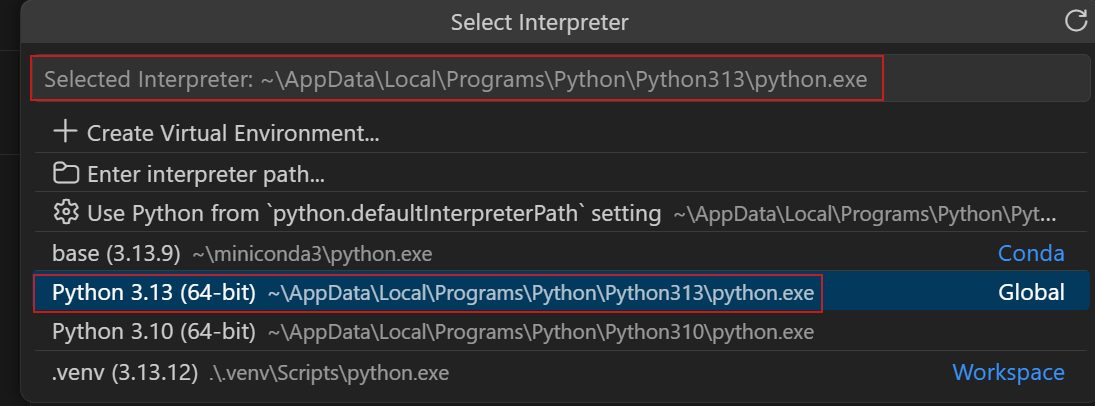
- Open View → Command Palette… or press Ctrl+Shift+P on Windows/Linux or Command+Shift+P on macOS. The palette is a searchable list of editor commands.
- Type
Python: Select Interpreterand choose that command. - Select the Python environment verified during installation. For this book’s Anaconda route, choose its
baseenvironment; inspect the displayed path if several environments have similar names. - If the environment is missing, restart VS Code after completing Python installation. Reopen the palette and try again.2
The folder now holds the project’s files, and VS Code knows which Python should execute them. Creating hello.py turns this empty workspace into a runnable program.
Microsoft, Workspaces and Workspace Trust.↩︎
Microsoft, Python environments. Source of the interpreter selector screenshot. Checked on 22 October 2026.↩︎