First Python file
On this page
Create hello.pyWrite and save the programRun the fileChange and run againIf the result is differentA Python file stores instructions so that the same program can be run again. Keep first-python-file-demo open in VS Code and use the interpreter selected on the preceding page.
Create hello.py
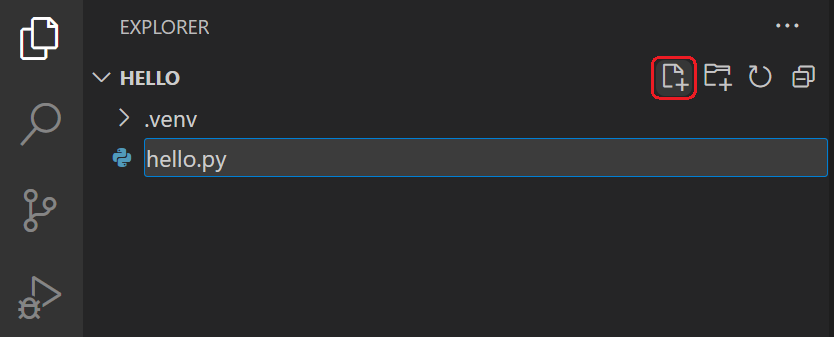
- In Explorer, move the pointer over the project folder and select New File, the page-with-a-plus icon shown in Figure 8.1
- Enter
hello.pyand press Enter. Check that the name appears in both Explorer and the editor tab. - Keep the
.pyending:hello.py.txtis a different filename. The language indicator should identify the file as Python.
Write and save the program
- Enter this single line in
hello.py:
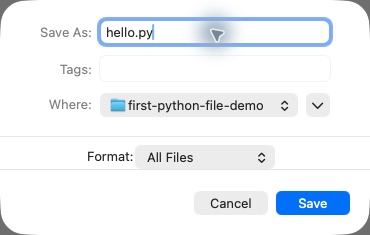
print("Hello World!")- Save with Ctrl+S on Windows/Linux or Command+S on macOS. If a Save dialog appears, save inside
first-python-file-demo. - Check the editor tab: the unsaved-change dot should disappear after saving.
print() displays the message between quotation marks. The quotation marks are part of the instruction, not part of its output.
Run the file
- Keep
hello.pyopen and saved. - Open the Command Palette and choose
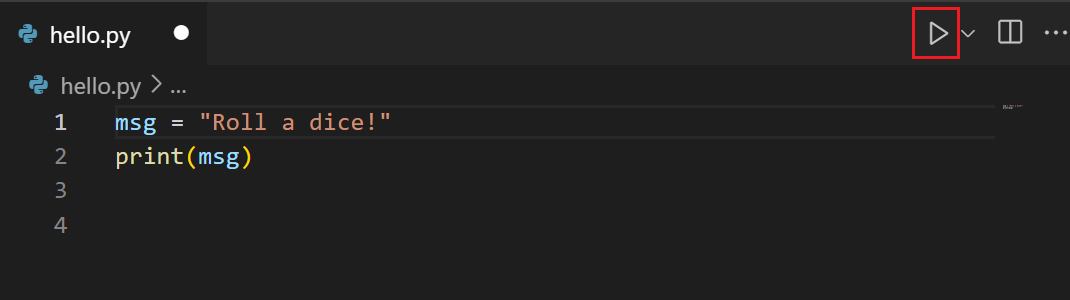
Python: Run Python File in Terminal. Alternatively, use the Run Python File play button at the editor’s upper right, shown in Figure 10. - Look at the Terminal panel that opens below the editor. The Python extension starts the selected interpreter and runs the file.
The program’s output should be exactly:
Hello World!The terminal may also show a command, an interpreter path and a prompt. These identify the execution session; they are not additional output from print().
Change and run again
- Change the message to
Hello from my first file!. - Save the file and run it with the same command.
- Check that the terminal displays the new message. This confirms that the editor is running the saved file you changed.
The same program can be launched from a terminal in its project folder with python hello.py, provided the intended Anaconda environment is active. The editor’s Run Python File command is the simpler route for this first example.
If the result is different
- No run command: check that Microsoft’s Python extension is enabled and the file ends in
.py. - No interpreter: repeat Python: Select Interpreter from the preceding page.
- SyntaxError: compare the quotation marks and parentheses with the example above.
- The old message remains: save the file and confirm that the active tab is
hello.pyin the intended project. - File not found in a manual terminal run: open the correct project folder before entering the command.
The two projects that follow use the same cycle—write, save, run and inspect—to produce greetings and a short timeline.
Microsoft, Python in VS Code. Source of the New File and Run Python File screenshots; execution instructions checked on 22 October 2026. These screenshots are from official documentation, not the author’s computer.↩︎