VS Code
Visual Studio Code (VS Code) is the editor used here to write and run saved Python files. Python should already be installed using the guide for your operating system.
Download and install
- Open the official VS Code download page and choose the build for your operating system and processor.1
- Complete the installation for your platform:
- Windows: run the User Installer (
.exe), accept the licence if you agree, and complete the setup screens. - macOS: open the downloaded disk image (
.dmg), drag Visual Studio Code into Applications, then open it there. - Linux: download the package appropriate to the distribution (
.debfor Debian/Ubuntu or.rpmfor RPM-based systems) and open it with the system’s software installer. If the distribution uses a different method, follow its official setup instructions.
- Windows: run the User Installer (
- Open VS Code. The welcome screen confirms that the editor is installed. Optional AI features and account sign-in are not needed for the examples in this chapter.
Install Python support
An extension adds features to the editor. Microsoft’s Python extension supplies the controls used to select Python and run a file; it does not install Python itself.
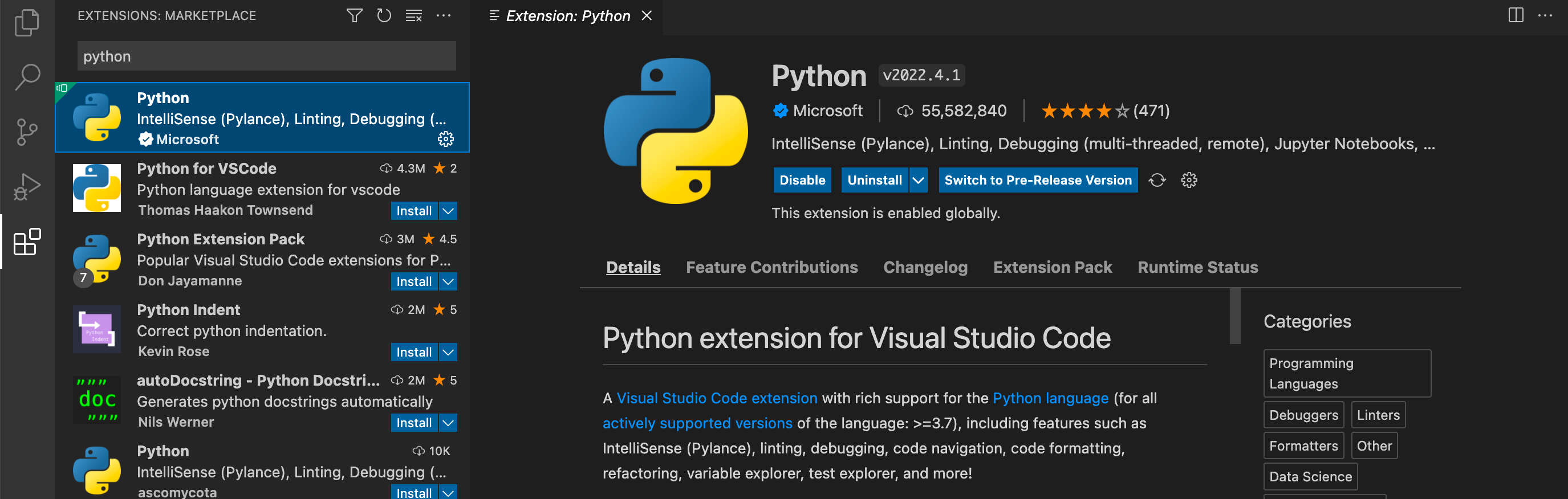
- Select Extensions in the left activity bar, or press Ctrl+Shift+X on Windows/Linux or Command+Shift+X on macOS.
- Type
Pythonin the search field. - Select the extension named Python published by Microsoft, as shown in Figure 6. Choose Install and wait for installation to finish.2
- If VS Code requests a reload, complete it. A Disable or Uninstall control indicates that the extension is already installed.
The editor and Python support are now available. Opening a project folder gives the files a common location and lets the editor remember which Python installation to use.
Microsoft, Download VS Code and installation instructions for Windows, macOS and Linux. Checked on 22 October 2026.↩︎
Microsoft, Extension Marketplace. Source of the Python extension screenshot.↩︎