Install on Windows
Install Python on Windows using Anaconda Distribution.
Download
- Open the Anaconda download page.1
- Choose Anaconda Distribution → Windows graphical installer for the computer’s system type.
- Save the
.exefile in Downloads.
Install
- Open the installer from Downloads.
- Select Next, read the licence agreement and accept it to continue.
- Choose Just Me and keep a suitable installation folder.
- Keep Create shortcuts selected.
- Leave Add Anaconda3 to my PATH unchecked; the checks below use Anaconda Prompt.
- Keep the default Python registration setting unless another Python installation must remain the default.
- Select Install, wait for completion, then select Finish.
Verify
- Open Start, type Anaconda Prompt in the search field and select the application. Figure 1 shows the application to look for.2
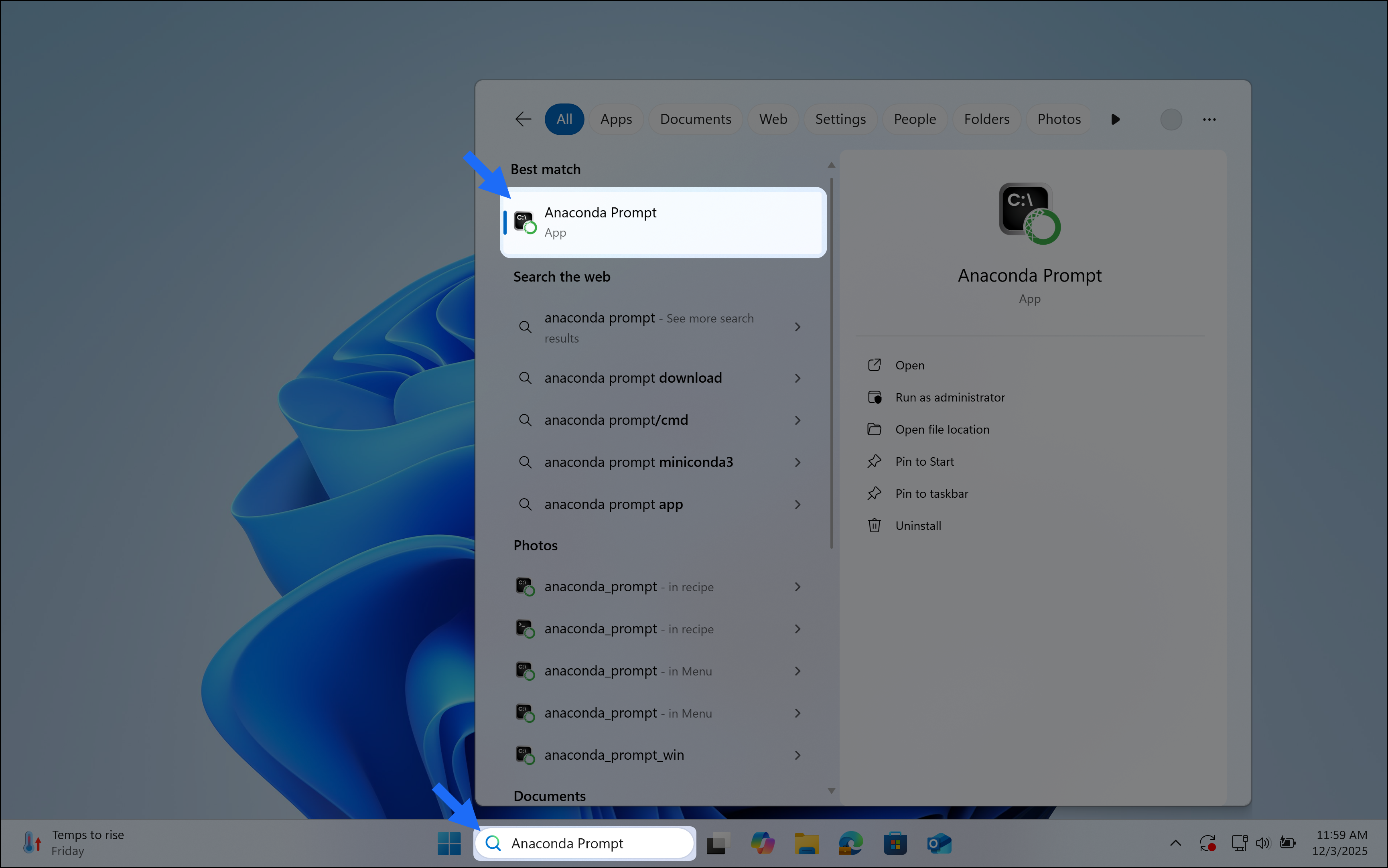
- In Anaconda Prompt, enter the following command and press Enter:
conda listA list of package names and versions confirms that conda is available. The prefix (base) in the prompt identifies the initial environment.
- Enter the next command:
python --versionThe result should begin with Python 3 followed by a release number. The exact number depends on the installed distribution.
Test Python
- In the same Anaconda Prompt window, enter:
pythonPython displays its version information followed by the >>> prompt. This prompt means that Python is ready to accept a statement. It is not part of the statement to type.
- At
>>>, enter the following statement and press Enter:
print("Hello from Python!")The output is:
Hello from Python!- Enter
exit()and press Enter to return to Anaconda Prompt. Python statements belong at>>>; commands such aspython --versionbelong at the terminal prompt.
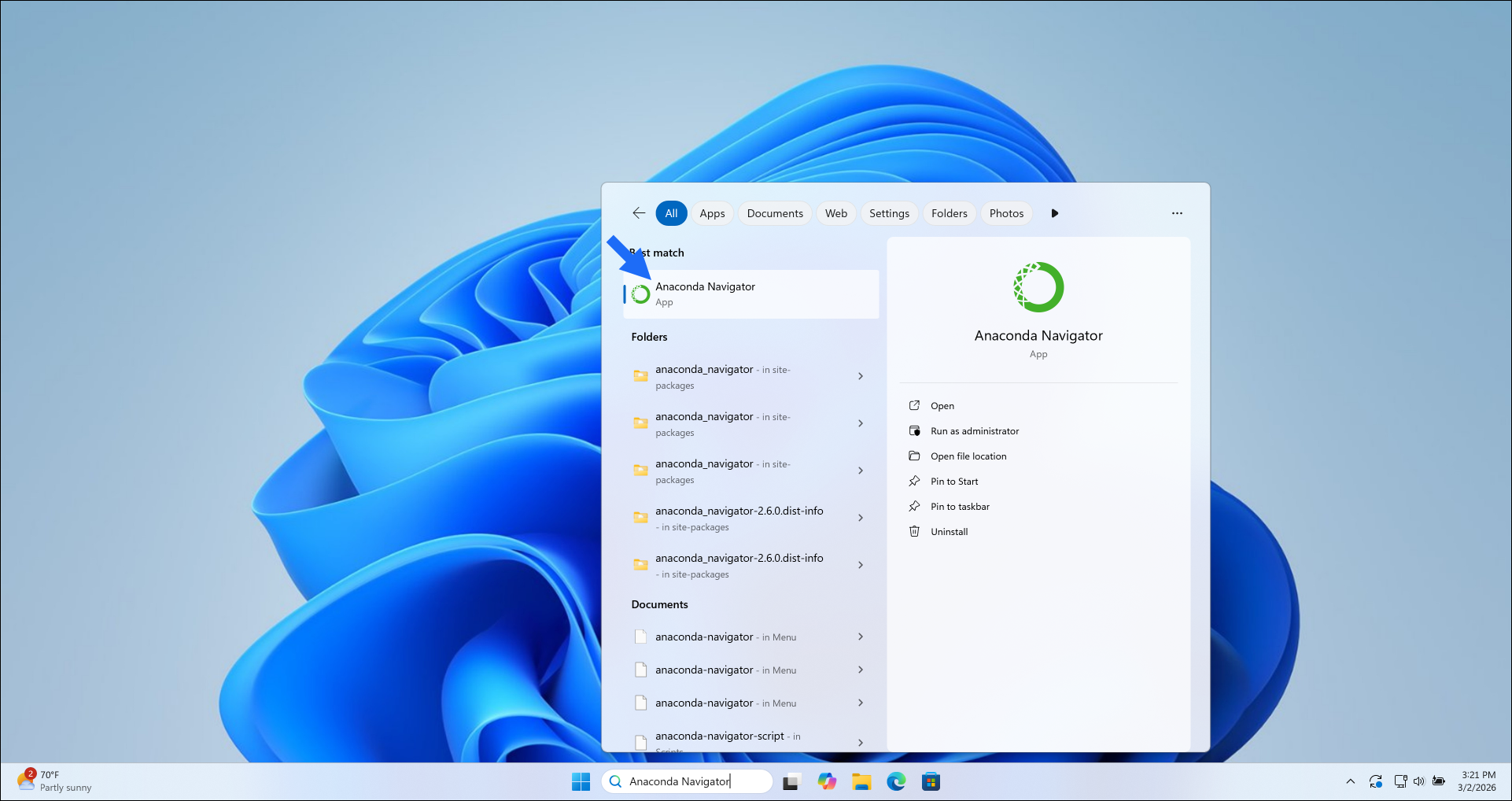
Anaconda Navigator is the distribution’s graphical application. It can also be found through Start, as shown in Figure 2. Opening it is optional for the checks above.
Troubleshooting
- Anaconda Prompt does not appear: confirm that installation finished and shortcuts were enabled. Restart Windows if the Start menu has not refreshed.
condaorpythonis not recognised: close the window and open Anaconda Prompt from Start. An unrelated terminal may not have the Anaconda environment available.- A different Python installation starts: return to the terminal prompt and enter
python -c "import sys; print(sys.executable)". The displayed path identifies the interpreter being used. - Installation reports a permission error: run the installer from Downloads, choose Just Me and select a folder writable by the current account. On an organisation-managed computer, ask the administrator for the approved installation method.
Anaconda, Download Anaconda Distribution. Supported systems and installer choices are listed on the current download page.↩︎
Figures 1–4 reproduce screenshots from Anaconda’s Windows graphical installer documentation. These are official documentation images, not captures from the author’s computer.↩︎