Install on macOS
Install Python on a Mac using the graphical Anaconda installer.
Download
- Open Apple menu → About This Mac and check the chip and macOS version.
- Open the Anaconda download page.1 For a supported Apple silicon Mac, choose the macOS graphical installer (
.pkg). - Save the installer in Downloads.
Intel Mac: current Anaconda releases no longer target Intel Macs. Check the official compatibility guidance before using an archived Intel installer.2
Install
- Open the
.pkgfile from Finder → Downloads. - Select Continue, read the licence agreement and accept it to proceed.
- Review the installation location. The current graphical installer uses
/opt/anaconda3. - Select Install and provide the macOS authorisation requested by the installer.
- When installation succeeds, close the installer and open a new Terminal window using Spotlight (Command+Space, then type
Terminal).
Verify
- In Terminal, enter:
conda activate base
conda listThe second command should display package names and versions.
- Check Python:
python --versionThe result should begin with Python 3; the release number may differ from examples in the book.
Test Python
- Start Python:
python- At
>>>, type the statement below without the prompt symbols:
print("Hello from Python!")The output is:
Hello from Python!- Enter
exit()to return to Terminal.
Troubleshooting
condais not found: reopen Terminal. If necessary, follow the official shell-initialisation instructions for the recorded installation location.- Another Python starts: activate
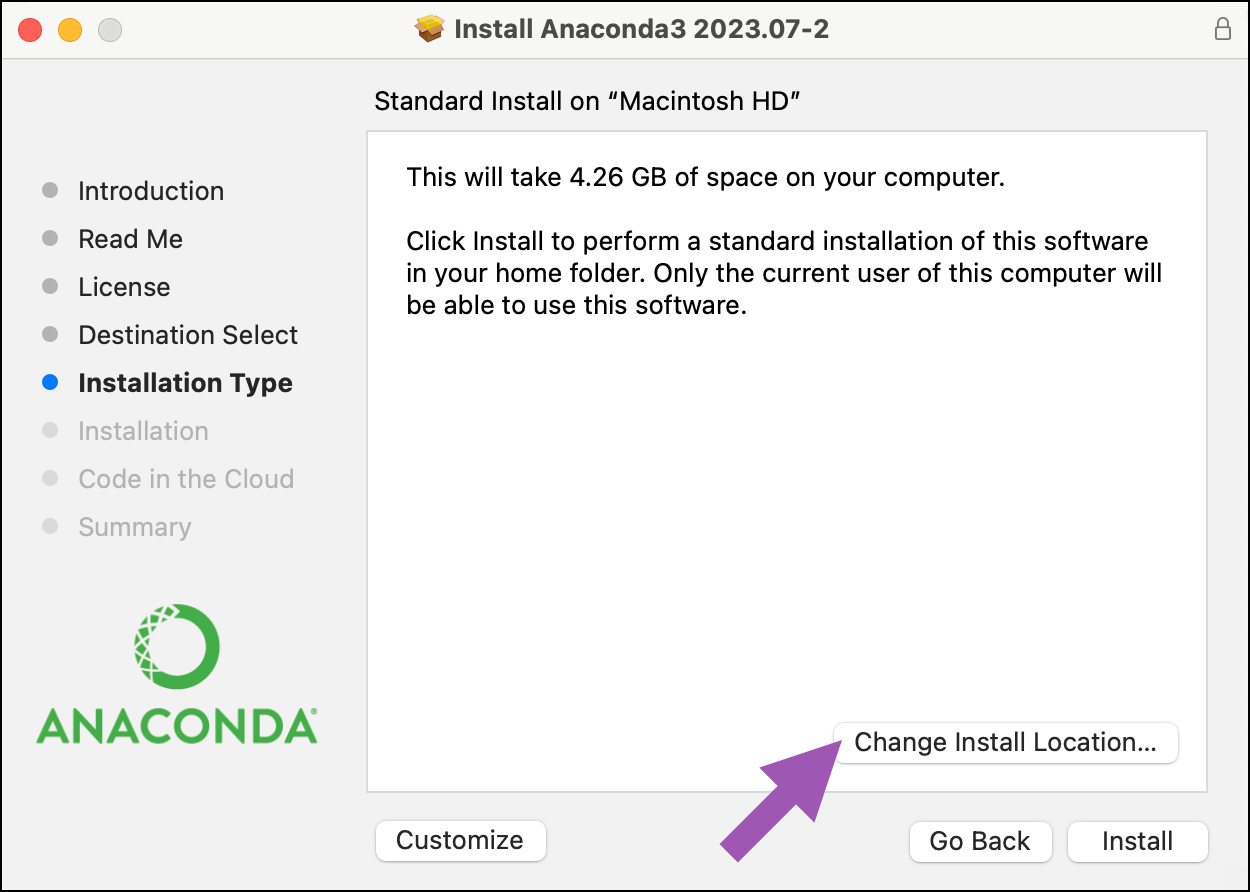
base, then usepython -c "import sys; print(sys.executable)"to check its location. - The installer reports an incompatible package: first check system compatibility. The official guide also documents a destination-permission issue; its Change Install Location… control is shown in Figure 3.3
Anaconda, Download Anaconda Distribution.↩︎
Anaconda, macOS graphical installer. Includes system compatibility, the Intel Mac support change and shell initialisation. Checked on 22 October 2026.↩︎
Screenshot reproduced from the troubleshooting section of Anaconda’s macOS graphical installer guide.↩︎