Jupyter Notebook
Choose this route if you want to work through the book’s companion notebooks. A notebook keeps code cells, explanations and output in a document saved with the .ipynb extension. If you prefer saved .py files, continue to VS Code instead.
Open Jupyter Notebook
After completing your platform’s verification, open Anaconda Prompt on Windows or a terminal configured for conda on macOS/Linux. Activate the environment you verified, then start Notebook:
conda activate base
jupyter notebookThe command starts a local server and normally opens a browser. If the browser does not open, use the complete local address printed in the terminal. Keep that terminal running while you work. If the command is unavailable, consult the Jupyter (software for working with documents that combine code, text and output) installation instructions1 for the selected environment.
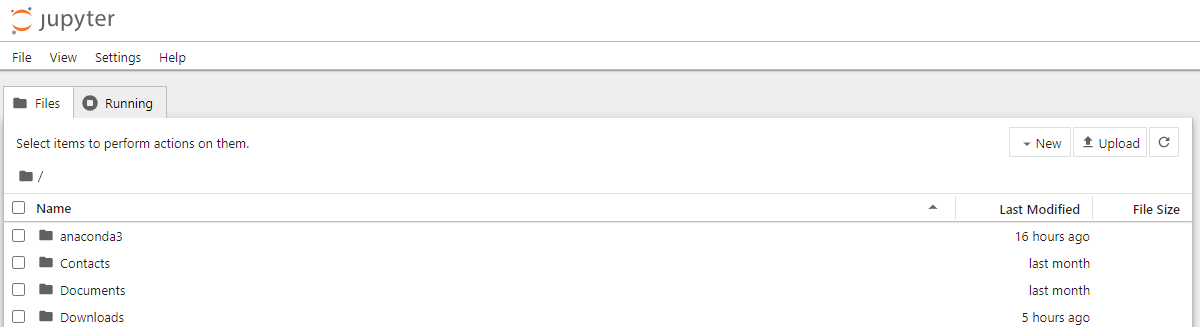
Create, run and save a notebook
Create a notebook and choose a Python kernel when prompted. The kernel executes the code in its cells. Enter the following instruction in a code cell, then press Shift+Enter. The output below the cell should read Notebook ready.
print("Notebook ready")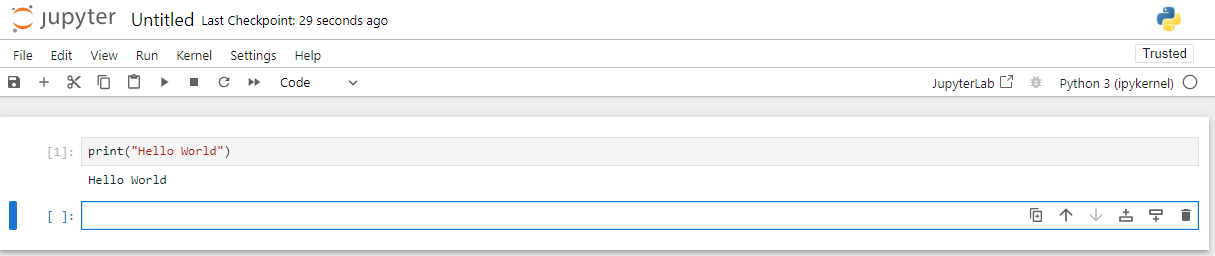
Give the notebook a meaningful name and use the application’s save command. Saving preserves the document; running a cell executes that cell. They are separate actions. When reopening a notebook, run its cells in order so that later cells can use values created earlier.
Continue with the book
You can now use the companion notebook linked from Your first Python programs. You do not need to complete the VS Code (Visual Studio Code, an application for writing and organising program files) setup to follow that route.
See the Jupyter Notebook documentation2 for current interface details.